Knowing how to identify a phishing email can help employees stop a suspicious message before it leads to stolen credentials, fraudulent payments, or unauthorized access to company systems. According to the FBI’s 2025 Internet Crime Report, phishing and spoofing was the most reported cybercrime type in the United States in 2025, with 191,561 complaints.
The checklist below highlights 10 warning signs employees can use before clicking, replying, downloading a file, or following instructions in an unexpected email.
What Is a Phishing Email?

A phishing email is a fraudulent message that impersonates a trusted person, company, or service to trick the recipient into revealing credentials or confidential information, transferring money, opening malicious content, or taking another action that benefits the attacker. These messages usually imitate something ordinary — an account notification, an invoice, a shared document, a security alert, or a request from someone you already work with.
Why Phishing Emails Are Harder to Spot in 2026
Modern phishing messages may copy legitimate branding and signatures, use convincing business language, and use AI-generated text without the spelling and grammar mistakes employees once expected. The FBI notes that generative AI can help criminals create believable content for social engineering and spear-phishing campaigns. Attackers may also use compromised accounts or existing business conversations to make fraudulent requests more credible.
Bad grammar alone is therefore no longer a reliable phishing test.
10 Warning Signs of a Phishing Email
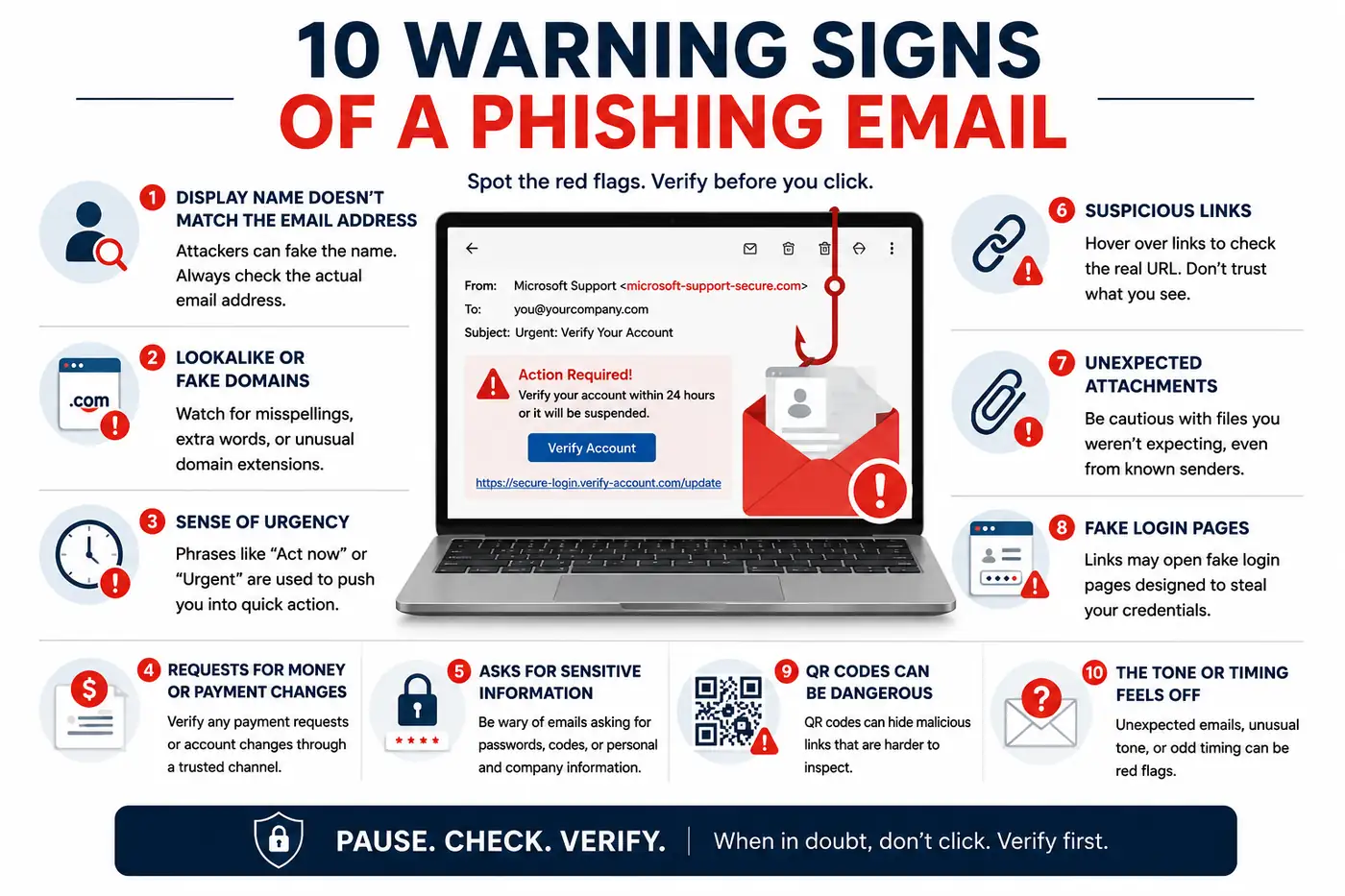
A phishing email may contain several warning signs. One unusual detail does not prove a message is malicious, but it is enough reason to stop and verify the request through a trusted method.
1. The Display Name Doesn’t Match the Actual Email Address
A familiar display name does not guarantee that an email came from the person or company shown. In Outlook or Outlook on the web, expand the sender information to inspect the full address; on a phone, tap the sender’s name. Also check for an unexpected Reply-To address or external-sender warning.
For example:
Display name: Acme Vendor Support
Actual sender: acme-support247@gmail.com
The display name looks legitimate, but the actual address does not match the company.
2. The Domain Is a Lookalike, Not the Real One
Attackers may register domains that resemble legitimate ones, such as micros0ft.com, where an “o” is replaced with a zero. Lookalike Unicode characters can make the difference even harder to notice.
Misleading subdomains are another tactic. In microsoft.security-verify.com, the registered domain is actually security-verify.com, not Microsoft.
Read domains from right to left to identify the registered domain and expose misleading subdomains or lookalike characters.
3. The Message Creates a False Sense of Urgency
Phishing messages often pressure recipients to act quickly with warnings such as “Action required within 24 hours” or “Your account will be suspended.” Urgency alone does not prove fraud, but artificial pressure is a reason to slow down and verify the request.
4. You’re Asked to Move Money or Change Payment Details
Unexpected invoices, wire transfers, gift-card requests, or changes to banking details deserve extra scrutiny, especially when a supplier suddenly provides new payment details.
Verify any unexpected change to payment instructions through a trusted contact method, such as a phone number already on file. This is particularly important for organizations such as law firms handling time-sensitive financial transactions.
5. The Email Asks for Passwords, Codes, or Employee Data
Be cautious when an email asks for passwords, MFA codes, payroll details, employee records, or other confidential information. No legitimate organization will ask you for a password or MFA code by email.
Repeated MFA approval notifications can also be part of an attack. If you did not initiate the login, never approve the MFA request.
6. The Link Doesn’t Go Where It Says It Goes
The visible text of a link may not match its destination. On a desktop, hover over the link without clicking and compare the URL with the organization’s legitimate domain. A padlock icon or https:// does not prove that a site is legitimate.
On mobile, press and hold a link to reveal its destination before tapping — but treat this as one signal, not proof. Shortened links and corporate “safe link” rewriting can hide the real destination.
7. There’s an Unexpected Attachment
Be cautious with an attachment you were not expecting, particularly PDFs, Office documents, ZIP archives, HTML files, or files asking you to enable macros or active content.
Not every unexpected attachment is malicious, but the file should make sense for the sender, conversation, and work you were expecting.
8. The Link Opens a Login Page That Asks You to Sign In Again
Phishing links may open fake login pages that closely resemble Microsoft 365, banking portals, or other familiar services. For example, a supposed Microsoft document-sharing page may actually be hosted on a domain unrelated to Microsoft.
Instead of signing in through an email link, open the service from a trusted bookmark or type its known address yourself. Always check the browser’s domain before entering credentials.
9. The Email Contains a QR Code Instead of a Link
QR-code phishing, or quishing, makes traditional link inspection harder because there is no visible URL to hover over. Scanning the code may also move the interaction from a protected company computer to a phone.
A QR code may claim to provide MFA re-enrollment, an HR document, delivery information, or account verification while directing you to a credential-harvesting page. Microsoft has documented this tactic as a way to bypass traditional email defenses, reporting that QR-code phishing attacks rose 146% between January and March 2026.
10. The Tone, Timing, or Format Feels Off
Sometimes the warning sign is contextual. A message may use unusual language, arrive at an unexpected time, contain inconsistent branding, or ask you to bypass a normal company procedure.
Do not rely on spelling or grammar alone. Sophisticated phishing emails can look polished and professional.
How to Verify a Suspicious Email Before You Act

Once you notice something suspicious, stop before replying, opening an attachment, scanning a QR code, or following instructions. Verify the request through a trusted source outside the email. If you cannot independently confirm it, contact IT before taking further action.
Confirm the Request Through a Different Channel
If an email asks for a payment, password reset, sensitive information, document, or account change, verify the request through a channel independent of the message.
Call a number already stored in your company directory, contact the person through an existing Teams account, use a trusted bookmark, or contact a vendor through details already on file. Do this even when the message appears in a real email thread, because compromised mailboxes can be used to insert fraudulent requests into legitimate conversations.
When to Stop and Ask IT Instead
Stop and contact IT if you cannot verify the sender or if the message involves payments, credentials, MFA codes, sensitive information, an unexpected attachment, or a suspicious QR code or login page.
If your company’s procedure requires sending the email to IT, forwarding it as an attachment can preserve headers useful for investigation. Your remote IT support team can investigate without requiring you to interact further with the message.
What to Do If You Clicked a Phishing Link
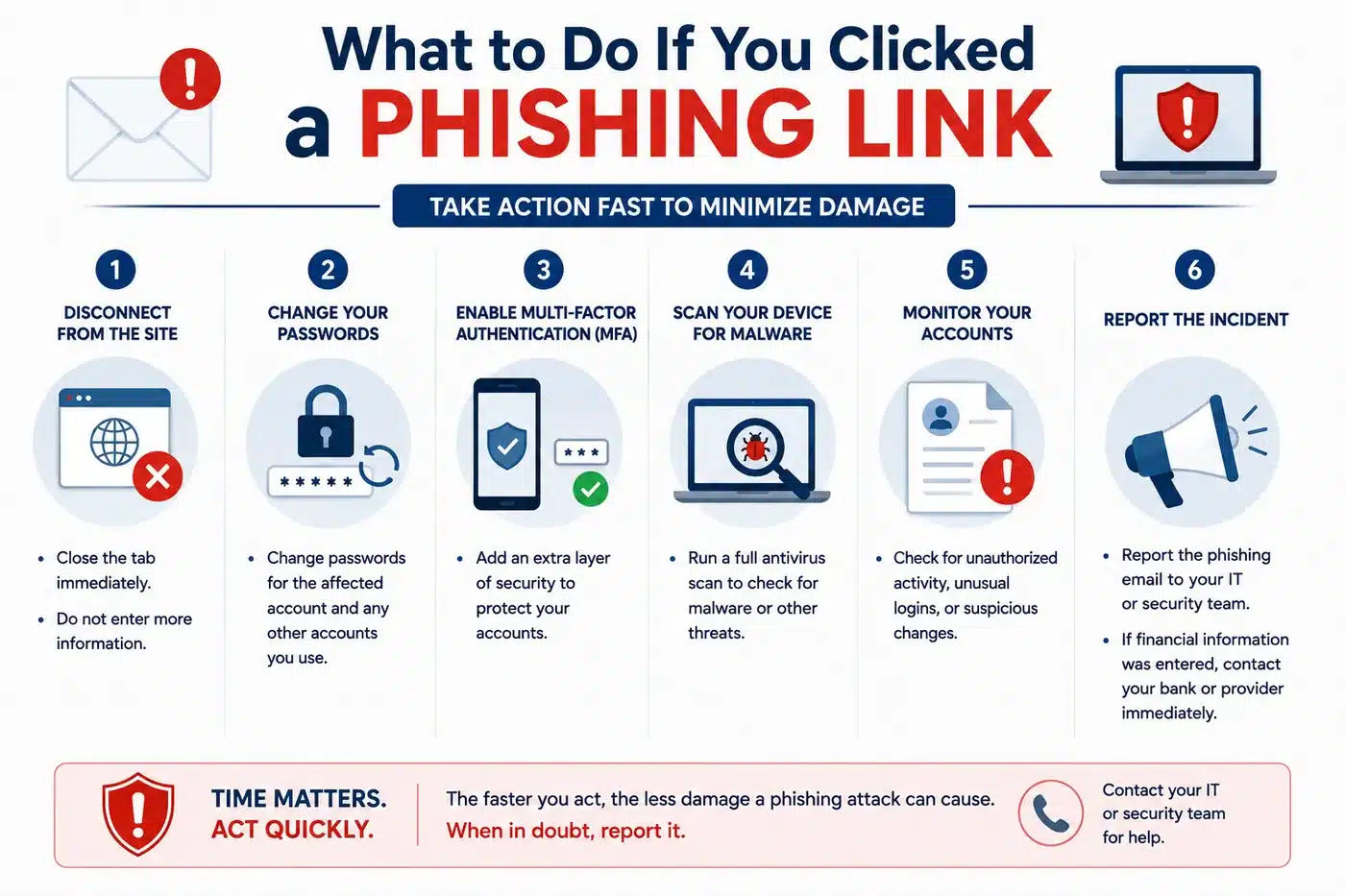
The first 15 minutes after interacting with a suspected phishing message matter. If you opened or downloaded a suspicious file, disconnect the affected device if your company procedure requires it. Change any exposed password from a trusted device, notify IT immediately, review active sessions, and follow your IT team’s instructions for checking the device.
Report It — and How to Report It Properly
Report the incident to IT or security immediately and explain what happened, including whether you clicked a link, opened an attachment, entered credentials, scanned a QR code, or approved an MFA request.
In supported versions of Outlook, select the suspicious message and use Report → Report phishing. This is different from marking a message as junk. If the Report button is unavailable, follow your company’s reporting process, since its availability depends on your organization’s Microsoft 365 configuration. Report the message before deleting it.
Suspected phishing emails can also be forwarded to the Anti-Phishing Working Group at reportphishing@apwg.org. Fraud can be reported to the FTC through ReportFraud.ftc.gov.
Secure the Accounts That May Be Affected
If you entered a password, approved an unexpected MFA prompt, or exposed account access, notify IT and change the affected password through the legitimate service. Tell IT if the password was reused elsewhere.
Review active sessions, unfamiliar sign-ins, mailbox forwarding rules, and unexpected account changes. Reject MFA prompts you did not initiate. If credentials were exposed, access the service through its legitimate website — not the phishing page.
MFA reduces the risk of account compromise considerably, but it is not absolute: attackers can still get past it through stolen session tokens or repeated approval prompts.
What Your Company Should Have in Place — and How to Ask for It

Recognizing suspicious emails matters, but employee vigilance should be the last layer of defense, not your company’s only protection. You should know what safeguards are in place and what to ask about when a process is unclear.
MFA should protect business accounts, advanced email filtering should help screen suspicious messages, and a clear reporting procedure should tell employees how and where to report potential phishing. Employees should also receive recurring phishing-awareness training and simulations based on realistic attacks.
If you’re unsure about these protections, ask IT how they’re handled. A properly managed secure cloud email environment can support these security layers without requiring you to configure them yourself.
Protect Your Team from Phishing Attacks

Phishing protection works best when employee awareness is supported by email security, MFA, and clear reporting processes. A cybersecurity assessment can help identify gaps in these protections and provide a clearer picture of your organization’s risk.
It typically reviews how email security is configured, how far MFA coverage extends across accounts, and where employee awareness gaps remain. If your business wants to review its current defenses, schedule a cybersecurity assessment with Computer Services New Jersey.
Frequently Asked Questions About Phishing Emails
What is a phishing email?
A phishing email is a fraudulent message that impersonates a trusted person, company, or service to trick the recipient into revealing credentials, sending money, opening malicious content, or taking another action that benefits the attacker.
Is it dangerous to open a phishing email if I don’t click anything?
Opening the message itself is generally low risk in a modern, updated email client. The greater danger comes from clicking links, opening attachments, enabling content, entering credentials, or replying. Treat opening alone as low risk, not zero risk — and never interact with the message beyond that.
How do I check a sender’s real email address on my phone?
Tap the sender’s displayed name or address to reveal the full email details. Compare the actual address with the organization the sender claims to represent and look for unexpected domains, spelling changes, or other inconsistencies.
Should I reply or click “unsubscribe” to stop a phishing email?
No. Do not reply or click an unsubscribe link in a suspected phishing message, because interacting may confirm that your email address is active. Report the message through your organization’s approved process, then delete it.
What’s the difference between phishing and spear phishing?
Phishing usually targets many recipients with broadly written messages, while spear phishing is tailored to a specific person, role, or organization. Because spear phishing uses researched details and familiar context, the message may appear much more convincing.
Should I report a phishing email even if I didn’t click anything?
Yes. Reporting helps your IT or security team investigate the message, block related threats, and identify other employees who may have received it. Report suspicious messages even if you did not interact with them.
Need serious people to handle your biz? Work with us!
Author
-
At Computer Services New Jersey, led by George Ancuta, we believe that small and midsize businesses deserve the same level of security, reliability, and strategic foresight as global financial institutions. Our firm provides more than just support; we offer a quarter-century of technical perspective forged in the world’s most demanding financial and corporate environments.